FTP (File Transfer Protocol) & IIS WebDAVWhy WebDEV and whats wrong with FTP?The traditional method for uploading content to a web server is File Transfer Protocol (FTP), but using this approach has its disadvantages:
• Using FTP requires that you open additional ports on your perimeter firewall, and this can increase the attack surface of your network and make it more susceptible to penetration by attackers. This is obviously undesirable from the perspective of keeping your network secure.
• FTP has no file locking mechanism, so it’s possible for two users to upload different versions of the same file simultaneously causing one to be overwritten. This can mean lost time troubleshooting why an uploaded file is different from what you expect.
• The FTP approach means you have to edit your content locally on the client. In other words, to edit a page already on the web server you would have to download it to the client, edit it there, and then upload it again to the web server. This is a time-consuming and inefficient approach to managing content.
WebDAV offers the solution for all the above problem scenarios, It’s a protocol used for publishing and managing content to web servers. WebDAV is an extension of the HTTP/1.1 protocol described in RFCs 2518 and 3253. WebDAV overcomes the three issues described above as follows:
• WebDAV uses port 80, the same port used by HTTP for web access. So using WebDAV means you don’t have to open any extra ports on your firewall.
• WebDAV lets only one user modify a file at a time, while allowing multiple users to read it. This allows files to be locked while they are being edited, preventing unexpected changes from occurring.
• WebDAV lets you edit files on the server instead of needing to download them first to the client. Editing files remotely using WebDAV is as easy as if they were locally present, and the whole process is transparent to the content producer.
How to Install and Use WebDEV on your Server?When we use Windows Server 2003 machine to the role of Application Server, it installs various IIS 6 components but WebDAV isn’t one of these components installed. This is different from the earlier Windows 2000 Server platform where installing IIS 5 automatically installed WebDAV as well. To install WebDAV on the IIS 6 machine, use Add or Remove Programs in Control Panel and run the Windows Components Wizard. You can see WebDAV under Application Server > Internet Information Services > World Wide Web Service > WebDAV Publishing. Check it and Install.
You need to enable it for IIS after the installation. To verify if enabled, check the WebDAV option under the Web Service Extensions node in IIS Manager. Open IIS (Start>Run>inetmgr) See Web Service Extensions at the left pane. You will be able to se WebDEV at the right pane, if you select the Wen\b Service WExtension from the left pane. Make sure that it is Allowed. Be noticed, when WebDAV extension (httpext.dll) is Allowed, it would be applicable for all websites on your server. IIS unfortunately does not let you configure WebDAV for each and every website separately.
What to be set at Client side?To create and manage content for your website , WebDAV to be enabled on the client machines. Windows XP has a built-in WebDAV client that doesn’t need to be installed, only enabled. To
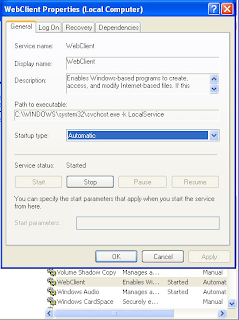
enable WebDAV on XP, open the Services console under Administrative Tools and find the WebClient service and double-click on this service to open its Properties. Change the Startup Type to Automatic, then click the Start button to run the service. Now you can publish the site content to your web server.
Settings on the Server for WebDAVThe physical directory where the Virtual directory points to be given read/write/directory listing permissions.
To publish content with WebDAV, the following web permissions on the directory to be enabled.
1. Read - lets users read what has been published to the server
2. Write - lets users upload new content to the server and edit existing content on the server
3. Directory listing - lets users view a list of published files on the server so they can select the one they want to view or edit.
If the Access is going to be given for a particular user group, It has to have Read, Read & Execute, and List Folder Contents permission. These are necessary for WebDAV users to be able to write and modify content on the web server. There are also two additional special permissions that the Users group has Create Files / Write Data, Create Folders / Append Data. These permissions too are necessary for WebDAV publishing, so don’t change them.
Publishing content with WebDEVGo to Internet Explorer’s Menu, File>Open
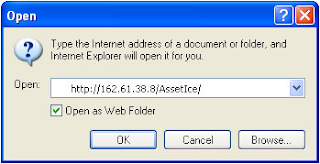
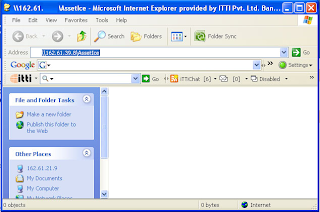
Check the ‘Open as Web‘ check box. Window will be opened with 0 Object displayed.
Now, drag and drop your Local files in this window, it reaches at the root of your Virtual Directory’s root on the remote server!. You can browse it as http://162.61.39.8/Assetice/NewFile.aspx